
|
Size: 6161
Comment:
|
← Revision 33 as of 2026-08-26 16:26:20 ⇥
Size: 13440
Comment: adding information on recheck pedigree
|
| Deletions are marked like this. | Additions are marked like this. |
| Line 1: | Line 1: |
| {{attachment:GDE_logo.png}} ''' 2020-Oct-16 ''' | {{attachment:GDE_logo_scaled.png}} |
| Line 3: | Line 3: |
| = GenoEx - GDE User’s manual v.1.0 = |
= GenoEx-GDE User’s manual v.1.1 = |
| Line 9: | Line 8: |
| The whole system consists of the database itself, where data files can be uploaded and downloaded from, and the input files’ preparation program – gxprep. | The whole system consists of the database itself, where data files can be uploaded and downloaded from, as well as two support programs: 1) gxprep.py – for input files’ preparation, and 2) gxapi.py - for upload and download of files through an API |
| Line 11: | Line 10: |
| The instructions for preparing the input files from raw laboratory files and for assigning sharing permissions can be found in the first part of this manual - gxprep.py preparation program. | The instructions for preparing the input files from raw laboratory files and for assigning sharing permissions can be found in the first part of the manual: [[https://wiki.interbull.org/public/GDE_gxprep_manual?action=print&rev=20|GDE-gxprep.py manual]]. |
| Line 13: | Line 12: |
| This manual describes step by step how to: | The instructions for using the API and gxapi.py can be found in the third part of the manual: [[https://interbull.org/ib/genoex_gde_api_manual|GDE-gxapi.py manual]] |
| Line 15: | Line 14: |
| * upload the data to the database * define data selection choice and download the data from the database |
This part of the manual describes step by step how to: |
| Line 18: | Line 16: |
| ---- <<TableOfContents()>> ---- |
* upload the data to the !GenoEx-GDE database at www.genoex.org; * define data selection choice and download the data from the !GenoEx-GDE database. <<BR>> |
| Line 26: | Line 25: |
| * sharing permission file (format 711) | * sharing permissions file (format 711) |
| Line 28: | Line 27: |
| Detailed file formats can be found in the manual describing the usage of gxprep program (https://wiki.interbull.org/public/GDE_gxprep_manual). Here we only remind the examples of these files. | Detailed file formats can be found in the manual describing the usage of the support program gxprep.py [[https://wiki.interbull.org/public/GDE_gxprep_manual?action=print&rev=20|GDE-gxprep.py manual]]. Here we only remind the examples of these files. <<BR>> |
| Line 32: | Line 31: |
| 706;BSW;AUS;M;000000A12345;ANAFI;09c98b1e-6af8-4254-9768-58d7cd1ddafd;Weatherbys Ireland;S1234WI2001;;54609;021010… | 706;BSW;ITA;M;000000A12345;ANARB;09c98b1e-6af8-4254-9768-58d7cd1ddafd;Weatherbys Ireland;S1234WI2001;;54609_a;021010… |
| Line 34: | Line 33: |
| <<BR>> | |
| Line 37: | Line 37: |
| 711;BSW;AUS;M;000000A12345;09c98b1e-6af8-4254-9768-58d7cd1ddafd;54609;ITBC,BFRO | 711;BSW;ITA;M;000000A12345;09c98b1e-6af8-4254-9768-58d7cd1ddafd;IBC,BFRO |
| Line 39: | Line 39: |
| <<BR>> | |
| Line 42: | Line 42: |
| Every organization which signs the contract for becoming !GenoEx-GDE Service User is from the service’s point of view considered as single User. On the other hand, it is possible to create several separate personal logins for different persons within the organization. As one Service User, they share the History of uploads and downloads as well as all rights and permissions assigned to the User. New logins can be added to the Service User’s account at any point of time. To do so, the user should send the request to genoex@slu.se | |
| Line 43: | Line 44: |
| Every organization which signs the contact for becoming !GenoEx-GDE Service User is from the service’s point of view considered as single User. On the other hand, it is possible to create several separate personal logins for different persons within the organization. As one Service User, they share the History of uploads and downloads as well as all rights and permissions assigned to the User. New logins can be added to the Service User’s account at any point of time. To do so, the user should send the request to genoex@slu.se | At the login page, every person should log in with their personal credentials. In case of lost password, the Reset Password functionality is available under the login tab. |
| Line 45: | Line 46: |
| At the login page, every person should log in with their personal credentials. {{attachment:gde_login.png}} |
{{attachment:gde_login.png}} <<BR>> |
| Line 51: | Line 49: |
As part of !GenoEx services, GDE is sharing the entry point with PSE, therefore please make sure that you choose the right tab for the upload in the drop-down menu. |
As part of !GenoEx services, GDE is sharing the entry point with PSE, therefore please make sure that you choose the right tab for the upload in the drop-down menu if you subscribe to both services. You will only have access to the tab of the service you subscribe to. |
| Line 60: | Line 57: |
| * __Uploading only 711__ file results in updating the sharing permissions for all the genotypes listed in it only if these genotypes, identified by combination of animal ID and UUid are already present in the database. '''Note:''' Newly uploaded sharing permissions will overwrite the existing ones. That means that uploading new 711 containing empty sharing list will remove all the existing sharing permissions for given genotypes. In order to update the existing sharing list, the User should re upload the relevant 711 file updated with the desired changes | * __Uploading only 711__ file results in updating the sharing permissions for all the genotypes listed in it only if these genotypes, identified by combination of animal ID and UUid are already present in the database. '''Note:''' Newly uploaded sharing permissions will overwrite the existing ones. That means that uploading new 711 containing empty sharing list will remove all the existing sharing permissions for given genotypes. In order to update the existing sharing list, the User should re-upload the relevant 711 file updated with the desired changes |
| Line 62: | Line 59: |
| In order to upload the file to the database, please choose the correct file from your computer and press ''UPLOAD'' | In order to upload the files to the !GenoEx-GDE database, both 706 and 711 files have to be zipped in two separate zip files. Zip format is the only one accepted by the !GenoEx-GDE database for the upload.<<BR>> Zip files can be created using the support program gxprep.py as described in the relative manual [[https://wiki.interbull.org/public/GDE_gxprep_manual?action=print&rev=20|GDE-gxprep.py manual]]. <<BR>><<BR>> If the User creates the zip files without using the support program gxprep.py, please make sure that the file containing genotypes (in 706 format) and compressed in the zip archive has name "'''genotypes.csv'''" and that the file containing sharing permissions (in 711 format) and compressed in the zip archive has name "'''711_file.csv'''"<<BR>> To upload the zip files please choose the correct file from your computer and press ''UPLOAD'' |
| Line 64: | Line 61: |
| {{attachment:GenoEx_GDE_upload1.png}} | {{attachment:Upload_page.jpg}} |
| Line 70: | Line 67: |
| {{attachment:init.png}} | {{attachment:Upload_processing.jpg}} |
| Line 72: | Line 69: |
| The first status you will see is INITIATED, then PROCESSING and finally either FINISHED or FAILED, dependently whether the upload was successful or not. | The first status you will see is INITIATED, then ENQUEUED, then PROCESSING and finally either FINISHED or FAILED, dependently whether the upload was successful or not. |
| Line 74: | Line 71: |
| {{attachment:gde_finished1.png}} {{attachment:gde_Uerror2.png}} | During the uploading process, the following checks are performed: |
| Line 76: | Line 73: |
| Like in the example above, FAILED is always accompanied with the informative error message, which allows the User to find and correct the problem. | * File706 and File711 format consistency; * SNP Array Code included among the ones listed in the "!GenoEx-GDE system data - SNP Arrays" table; * Laboratory included among the ones listed in the "!GenoEx-GDE system data - Laboratories" table; * Full duplicate genotypes rejected (the upload of identical data: exactly the same animal, same SNP density, same genotype already stored in the database by the same organisation will reject the whole file706). |
| Line 78: | Line 78: |
| In any case, the User will receive an e-mail when the data processing is finalized. | <<BR>> According to ICAR Guidelines Section 4 - DNA Technology (Feb 2022), in the uploading process !GenoEx-GDE performs basic genotypes quality control checks on: * Call Rate (>=90%); * Genotype classes frequency (AA, AB, BB >= 20%). Genotypes not fulfilling such quality control criteria are uploaded on the database and reported in both feedback email and status web page. During the uploading process the presence of animal's pedigree information in the Interbull Centre IDEA database is also checked (UUIDs of genotyped animals without information in IDEA are reported in both feedback email and status web page). <<BR>> ==== Successful Submission Status Page with all genotypes passing quality controls and pedigree check ==== {{attachment:Upload_finished.jpg}} ==== Successful Submission Status Page with genotypes failing quality control or pedigree check ==== If any of the genotypes fail one or more of the quality controls or the IDEA pedigree check, the UUid and the check failed will be reported on the status page. The quality controls (call rate and frequency) are not subject to change, while the pedigree can be corrected by uploading a pedigree for the animal in question to IDEA. You are __highly__ encouraged to upload pedigree for all animals before you upload your genotypes, but in case you should forget, you have the possibility to re-run the pedigree check by clicking on the "RE-CHECK pedigree" button on the relevant jobstatus page after you have uploaded the pedigree to IDEA. The re-check button is only available on status pages where one of the checks have failed. {{attachment:Uplaod_jobpage_pedigreemissing.jpg}} ==== Failing Submission Status Page ==== Like in the example below, a FAILED submission is always accompanied with the informative error message, which allows the User to find and correct the problem. In any case, the User will receive a feedback e-mail when the data processing is finalised. {{attachment:Upload_failed.jpg}} |
| Line 82: | Line 103: |
| In order to download data from !GenoEx-GDE the User has to select the Download options from GDE drop-down menu. | |
| Line 83: | Line 105: |
| In order to download the User has to select the Download options from GDE drop-down menus. | The genotypes to be downloaded (or the sharing permissions) can be chosen by BREED, COUNTRY OF ORIGIN, GENDER, SNP ARRAY (used for genotyping), submitting ORGANISATION and UPLOADING DATE (the latter two available only for genotypes extraction).Failure to make a selection for any of the categories before pressing "Download 706 from selection" will result in failed initiation of the process and no file downloaded. |
| Line 85: | Line 107: |
| The genotypes to be downloaded can be chosen by breed, country of origin, gender and chip used for genotyping. The User is also able to choose if to download all the genotypes available for the animals within chosen criteria (Full Extraction) or only one per animal, with the highest call rate. | Please note that when downloading sharing permissions, the file contains the list of genotypes (within the selection of breed, country, gender and array) uploaded by ''your'' organisation. A selection is not necessary, and pressing "Download 711 from selection" without selection of breed, country, gender and array will provide you with sharing permission for all of your uploaded genotypes. |
| Line 87: | Line 109: |
| {{attachment:gde_extr2.png}} | '''Genotypes extraction''': In the extraction process it is possible to choose if to download ALL the genotypes available for the animals (within chosen criteria by selecting the option "All" under "Genotypes Extraction") or only ONE genotype per animal (default), the one with the highest call rate (within chosen criteria, by selecting the option "Best Only" under "Genotypes Extraction"). |
| Line 89: | Line 111: |
| In here as well, the status page should be reloaded to see the current status. When the extraction is ready, a link to download the genotype file is provided: | '''Delta download''': In the extraction process it is possible to choose to download only the genotypes your organisation has never downloaded before by pressing "Only new" (default) under "Delta download", whether they are newly uploaded genotypes or previously uploaded but only recently made available to you through change in sharing permissions, or also do download genotypes you have downloaded previously by selecting "All". |
| Line 91: | Line 113: |
| {{attachment:gde_extr_compl2.png}} | '''Uploaded between''': In the extraction process is is possible to select a timeframe for when the genotypes have been uploaded. The "To"-date is by default todays date, while the "From"-date is by default 2 years back from todays date. |
| Line 93: | Line 115: |
| The downloaded file is formatted according to 706 specifications. That also mean that corresponding SNP order file is needed to decode the 706 genotype string. | '''Genomic quality control checks''': According to ICAR Guidelines Section 4 - DNA Technology (Feb 2022), !GenoEx-GDE has in place basic genotypes quality control checks for SNP‐based genotype data. By selecting the options Call Rate (>=90%) and/or Genotype classes frequency (AA, AB, BB >= 20%) the user can download only the genotypes fulfilling such quality control criteria. !GenoEx-GDE is also connected to the Interbull Centre IDEA database (which hosts the international pedigree of dairy and beef breeds evaluated by Interbull Centre. By selecting the option "Pedigree Information" it is therefore possible to extract only genotypes of animals with pedigree information available in IDEA database. |
| Line 95: | Line 117: |
| === SNP order files download === | {{attachment:Download_page.jpg}} |
| Line 97: | Line 119: |
| If the User has already prepared the upload data with the same SNP order file than the downloaded data, the relevant SNP order file was saved in the defined directory (see !GenoEx - GDE User’s manual part 1, section 2.1. parse). Otherwise, the SNP order file can be downloaded via the ''GDE Download'' tab. | Here as well, the status page should be reloaded to see the current status of the process. When the extraction is ready, a link to download the genotype file is provided, as well as information on the size of the file and how many genotypes have been extracted: |
| Line 99: | Line 121: |
| {{attachment:Download_jobstatus.jpg}} | |
| Line 100: | Line 123: |
| == 5. User’s History == | The link to download the genotype file is also saved in the "Job history" table, after selecting the specific "Job ID". The downloaded genotypes file is formatted according to 706 file format specifications, while the sharing permissions file according to the 711 file format specifications. This means that corresponding SNP order file is needed to decode the 706 genotype string. In order to download both the genotypes and the sharing permissions, two different extraction requests should be created. The page has to be refreshed between the two requests. |
| Line 102: | Line 125: |
| All the User’s actions as saved and can be later reviewed by them. As mentioned in section 2, !GenoEx considers an organization that has a User’s Contract with Interbull Centre signed, is considered as single User, which however, can have several logins. The History is User, not Login specific, thus actions from all logins within one organization are listen in the history together. | Hints on genotypes extraction for !InterGenomics Organisations are described here [[https://wiki.interbull.org/public/GDE_download_data_IGorgs?action=print&rev=6|link]]. |
| Line 104: | Line 127: |
| {{attachment:gde_history2U.png}} | == 5. GDE data statistics == By selecting from the GDE drop-down menu the option "statistics", the user can access to the !GenoEx-GDE data overview, showing the user's data uploaded on on the database as well as the data uploaded by other organisations the user has access to. {{attachment:GDE_statistics_ITBC.PNG}} == 6. User’s History == All the User’s actions related to genotypes upload and download are saved and can be later reviewed. As mentioned in section 2, !GenoEx considers an Organisation that has a User’s Contract with Interbull Centre signed, is considered as single User, which however, can have several logins. The History is User, not Login specific, thus actions from all logins within one Organisation are listen in the history table together. The History provides information on the type of action (submission or extraction), status (initiated, processing, finished or failed), which user the job is initiated by, date and and time of latest status update. For the case of submission the comment section provides the name of the uploaded file, while in the case of genotype extractions it provides information on your selection. {{attachment:History_2.jpg}} == 7. System Data == The System Data page allows to display all the available SNP orders, the allowed laboratories, breeds and countries. If the User has the need to, all the available SNP orders can be downloaded from the SYSTEM DATA page. {{attachment:System_page.jpg}} |

GenoEx-GDE User’s manual v.1.1
part 2 – Database Manual
GDE stands for Genomic Data Exchange and GenoEx-GDE is the database that allows users to exchange whole SNP sets, where users define how and with whom the data is to be shared.
The whole system consists of the database itself, where data files can be uploaded and downloaded from, as well as two support programs: 1) gxprep.py – for input files’ preparation, and 2) gxapi.py - for upload and download of files through an API
The instructions for preparing the input files from raw laboratory files and for assigning sharing permissions can be found in the first part of the manual: GDE-gxprep.py manual.
The instructions for using the API and gxapi.py can be found in the third part of the manual: GDE-gxapi.py manual
This part of the manual describes step by step how to:
upload the data to the GenoEx-GDE database at www.genoex.org;
define data selection choice and download the data from the GenoEx-GDE database.
1. Upload file formats
GenoEx-GDE allows upload of two types of files
- data file (format 706)
- sharing permissions file (format 711)
Detailed file formats can be found in the manual describing the usage of the support program gxprep.py GDE-gxprep.py manual. Here we only remind the examples of these files.
706 example
706;BSW;ITA;M;000000A12345;ANARB;09c98b1e-6af8-4254-9768-58d7cd1ddafd;Weatherbys Ireland;S1234WI2001;;54609_a;021010…
711 example
711;BSW;ITA;M;000000A12345;09c98b1e-6af8-4254-9768-58d7cd1ddafd;IBC,BFRO
2. Organizations, Users and Logins
Every organization which signs the contract for becoming GenoEx-GDE Service User is from the service’s point of view considered as single User. On the other hand, it is possible to create several separate personal logins for different persons within the organization. As one Service User, they share the History of uploads and downloads as well as all rights and permissions assigned to the User. New logins can be added to the Service User’s account at any point of time. To do so, the user should send the request to genoex@slu.se
At the login page, every person should log in with their personal credentials. In case of lost password, the Reset Password functionality is available under the login tab.
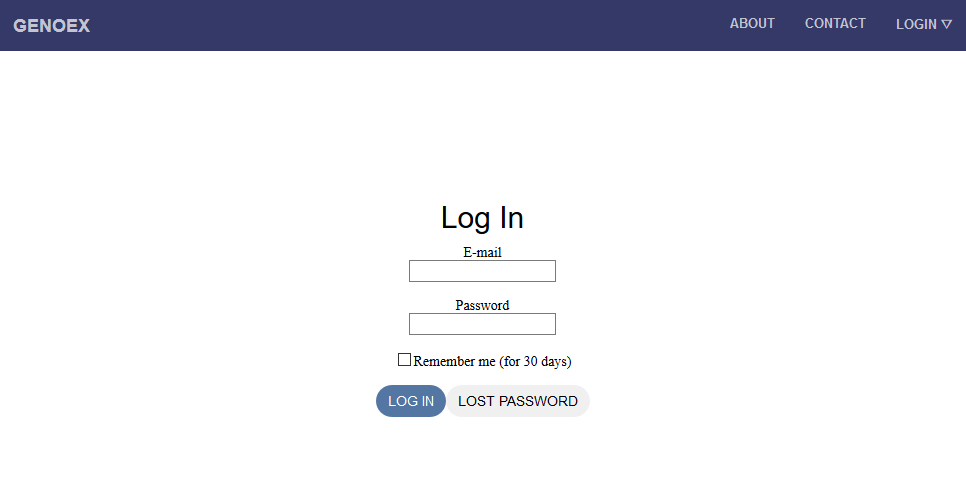
3. GDE data upload
As part of GenoEx services, GDE is sharing the entry point with PSE, therefore please make sure that you choose the right tab for the upload in the drop-down menu if you subscribe to both services. You will only have access to the tab of the service you subscribe to.

GenoEx-GDE allows for simultaneous or separate upload of 706 and 711 files. Choosing different alternatives results in one of the following scenarios:
Uploading both 706 and 711 files, containing the same animals results in adding both genotype data and sharing permissions to the database
Uploading only 706 file results in adding genotype data to the database with no sharing permissions attached i.e. these data is accessible only to the owner organization, until relevant sharing information is provided.
Uploading only 711 file results in updating the sharing permissions for all the genotypes listed in it only if these genotypes, identified by combination of animal ID and UUid are already present in the database. Note: Newly uploaded sharing permissions will overwrite the existing ones. That means that uploading new 711 containing empty sharing list will remove all the existing sharing permissions for given genotypes. In order to update the existing sharing list, the User should re-upload the relevant 711 file updated with the desired changes
In order to upload the files to the GenoEx-GDE database, both 706 and 711 files have to be zipped in two separate zip files. Zip format is the only one accepted by the GenoEx-GDE database for the upload.
Zip files can be created using the support program gxprep.py as described in the relative manual GDE-gxprep.py manual.
If the User creates the zip files without using the support program gxprep.py, please make sure that the file containing genotypes (in 706 format) and compressed in the zip archive has name "genotypes.csv" and that the file containing sharing permissions (in 711 format) and compressed in the zip archive has name "711_file.csv"
To upload the zip files please choose the correct file from your computer and press UPLOAD
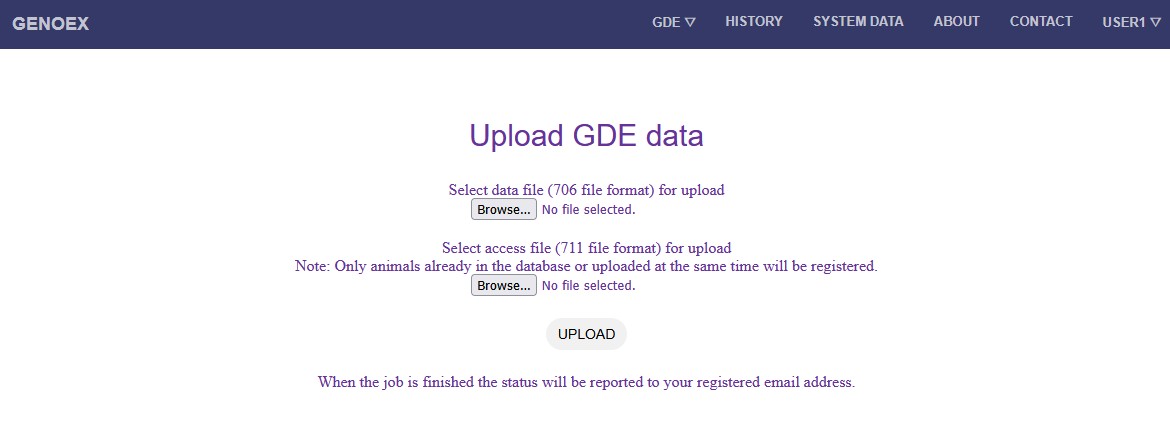
When upload starts, you will be redirected to the status page.
Note: this page does not update automatically, thus you must refresh it in order to see the progress.
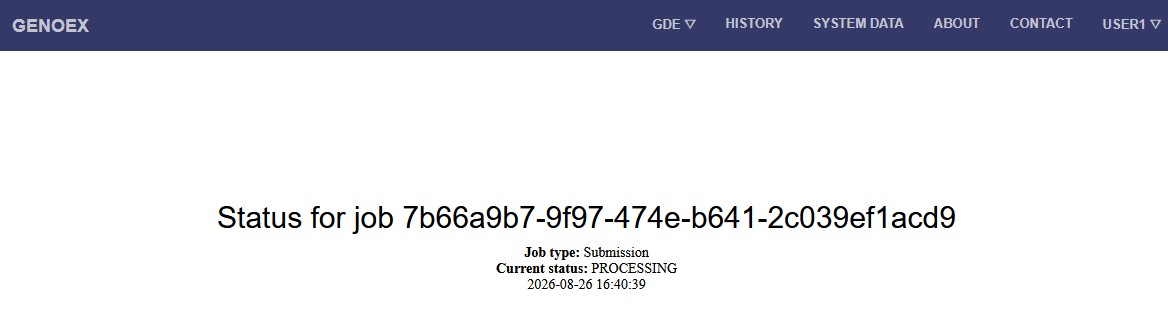
The first status you will see is INITIATED, then ENQUEUED, then PROCESSING and finally either FINISHED or FAILED, dependently whether the upload was successful or not.
During the uploading process, the following checks are performed:
- File706 and File711 format consistency;
SNP Array Code included among the ones listed in the "GenoEx-GDE system data - SNP Arrays" table;
Laboratory included among the ones listed in the "GenoEx-GDE system data - Laboratories" table;
- Full duplicate genotypes rejected (the upload of identical data: exactly the same animal, same SNP density, same genotype already stored in the database by the same organisation will reject the whole file706).
According to ICAR Guidelines Section 4 - DNA Technology (Feb 2022), in the uploading process GenoEx-GDE performs basic genotypes quality control checks on:
Call Rate (>=90%);
Genotype classes frequency (AA, AB, BB >= 20%).
Genotypes not fulfilling such quality control criteria are uploaded on the database and reported in both feedback email and status web page. During the uploading process the presence of animal's pedigree information in the Interbull Centre IDEA database is also checked (UUIDs of genotyped animals without information in IDEA are reported in both feedback email and status web page).
Successful Submission Status Page with all genotypes passing quality controls and pedigree check
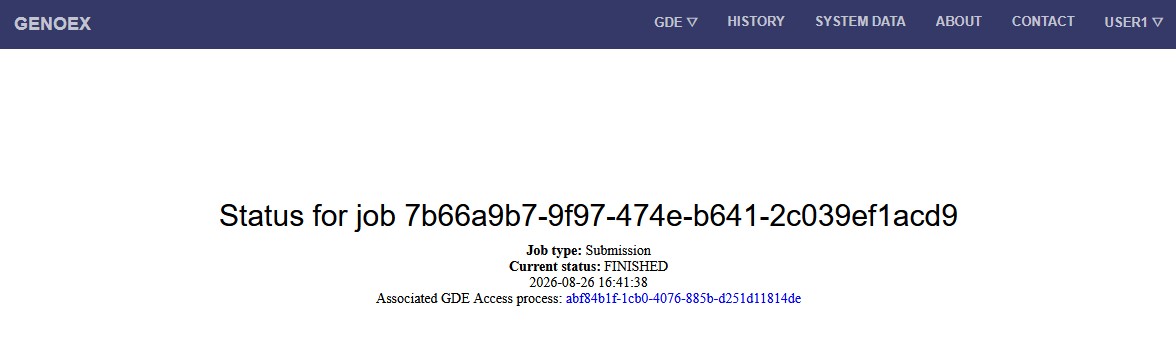
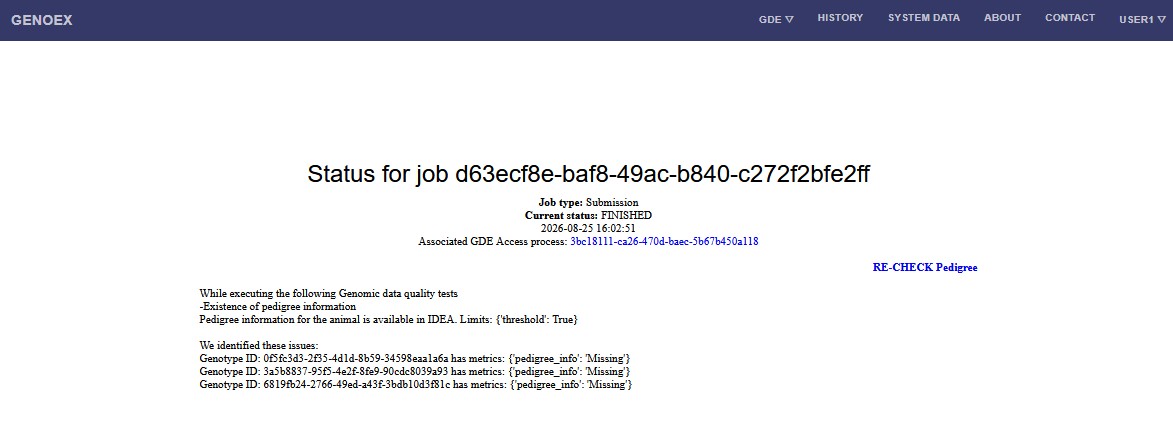
Successful Submission Status Page with genotypes failing quality control or pedigree check
If any of the genotypes fail one or more of the quality controls or the IDEA pedigree check, the UUid and the check failed will be reported on the status page. The quality controls (call rate and frequency) are not subject to change, while the pedigree can be corrected by uploading a pedigree for the animal in question to IDEA. You are highly encouraged to upload pedigree for all animals before you upload your genotypes, but in case you should forget, you have the possibility to re-run the pedigree check by clicking on the "RE-CHECK pedigree" button on the relevant jobstatus page after you have uploaded the pedigree to IDEA. The re-check button is only available on status pages where one of the checks have failed.
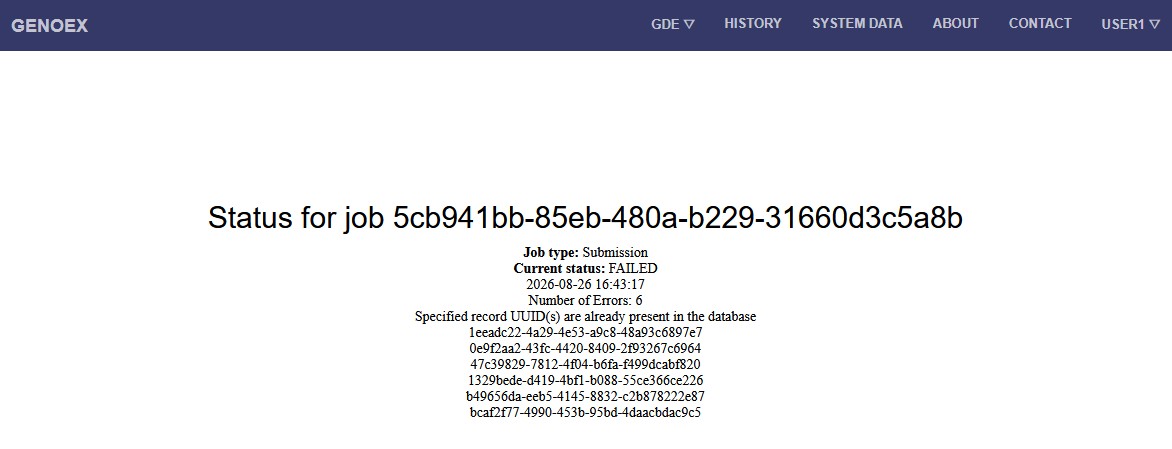
Failing Submission Status Page
Like in the example below, a FAILED submission is always accompanied with the informative error message, which allows the User to find and correct the problem.
In any case, the User will receive a feedback e-mail when the data processing is finalised.
4. GDE data download
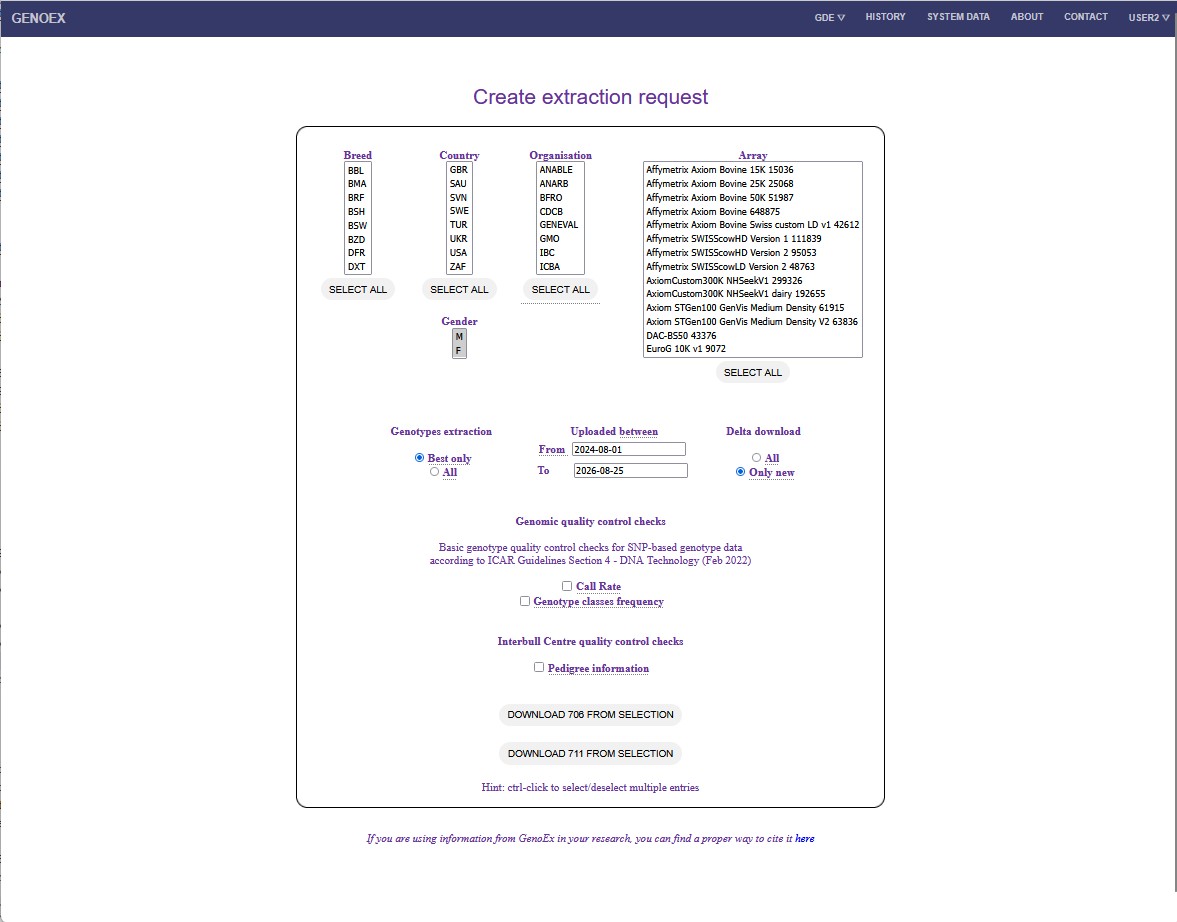
In order to download data from GenoEx-GDE the User has to select the Download options from GDE drop-down menu.
The genotypes to be downloaded (or the sharing permissions) can be chosen by BREED, COUNTRY OF ORIGIN, GENDER, SNP ARRAY (used for genotyping), submitting ORGANISATION and UPLOADING DATE (the latter two available only for genotypes extraction).Failure to make a selection for any of the categories before pressing "Download 706 from selection" will result in failed initiation of the process and no file downloaded.
Please note that when downloading sharing permissions, the file contains the list of genotypes (within the selection of breed, country, gender and array) uploaded by your organisation. A selection is not necessary, and pressing "Download 711 from selection" without selection of breed, country, gender and array will provide you with sharing permission for all of your uploaded genotypes.
Genotypes extraction: In the extraction process it is possible to choose if to download ALL the genotypes available for the animals (within chosen criteria by selecting the option "All" under "Genotypes Extraction") or only ONE genotype per animal (default), the one with the highest call rate (within chosen criteria, by selecting the option "Best Only" under "Genotypes Extraction").
Delta download: In the extraction process it is possible to choose to download only the genotypes your organisation has never downloaded before by pressing "Only new" (default) under "Delta download", whether they are newly uploaded genotypes or previously uploaded but only recently made available to you through change in sharing permissions, or also do download genotypes you have downloaded previously by selecting "All".
Uploaded between: In the extraction process is is possible to select a timeframe for when the genotypes have been uploaded. The "To"-date is by default todays date, while the "From"-date is by default 2 years back from todays date.
Genomic quality control checks: According to ICAR Guidelines Section 4 - DNA Technology (Feb 2022), GenoEx-GDE has in place basic genotypes quality control checks for SNP‐based genotype data. By selecting the options Call Rate (>=90%) and/or Genotype classes frequency (AA, AB, BB >= 20%) the user can download only the genotypes fulfilling such quality control criteria. GenoEx-GDE is also connected to the Interbull Centre IDEA database (which hosts the international pedigree of dairy and beef breeds evaluated by Interbull Centre. By selecting the option "Pedigree Information" it is therefore possible to extract only genotypes of animals with pedigree information available in IDEA database.
Here as well, the status page should be reloaded to see the current status of the process. When the extraction is ready, a link to download the genotype file is provided, as well as information on the size of the file and how many genotypes have been extracted:
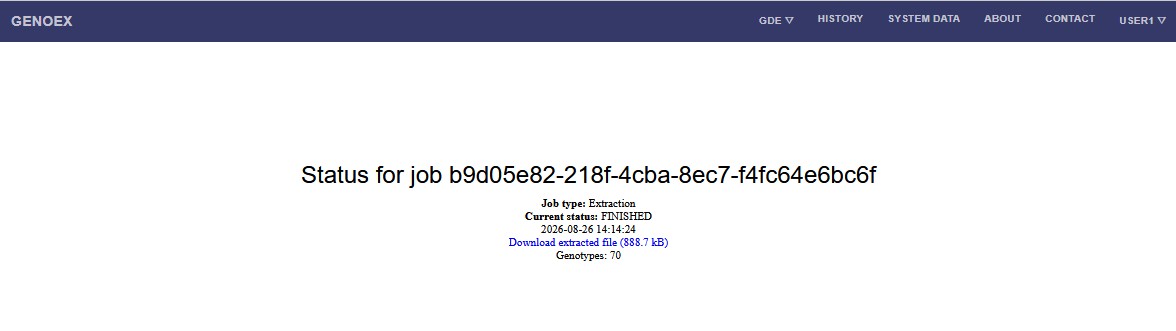
The link to download the genotype file is also saved in the "Job history" table, after selecting the specific "Job ID". The downloaded genotypes file is formatted according to 706 file format specifications, while the sharing permissions file according to the 711 file format specifications. This means that corresponding SNP order file is needed to decode the 706 genotype string. In order to download both the genotypes and the sharing permissions, two different extraction requests should be created. The page has to be refreshed between the two requests.
Hints on genotypes extraction for InterGenomics Organisations are described here link.
5. GDE data statistics
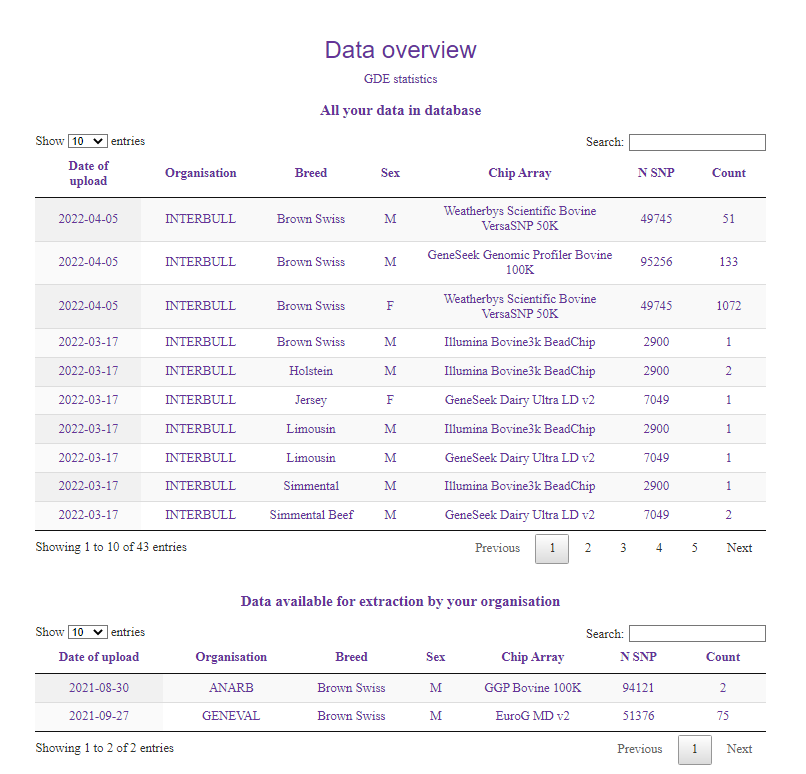
By selecting from the GDE drop-down menu the option "statistics", the user can access to the GenoEx-GDE data overview, showing the user's data uploaded on on the database as well as the data uploaded by other organisations the user has access to.
6. User’s History
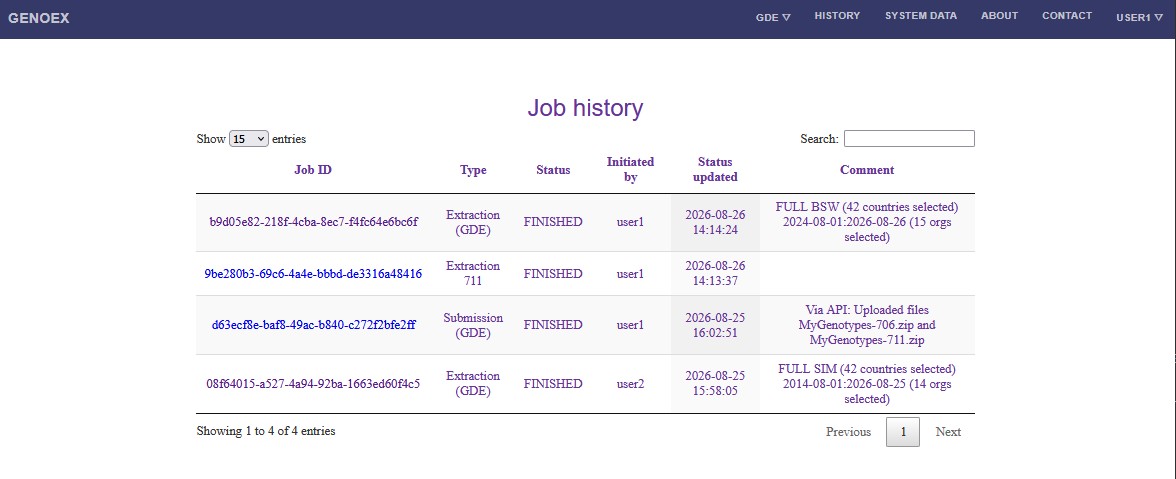
All the User’s actions related to genotypes upload and download are saved and can be later reviewed. As mentioned in section 2, GenoEx considers an Organisation that has a User’s Contract with Interbull Centre signed, is considered as single User, which however, can have several logins. The History is User, not Login specific, thus actions from all logins within one Organisation are listen in the history table together. The History provides information on the type of action (submission or extraction), status (initiated, processing, finished or failed), which user the job is initiated by, date and and time of latest status update. For the case of submission the comment section provides the name of the uploaded file, while in the case of genotype extractions it provides information on your selection.
7. System Data
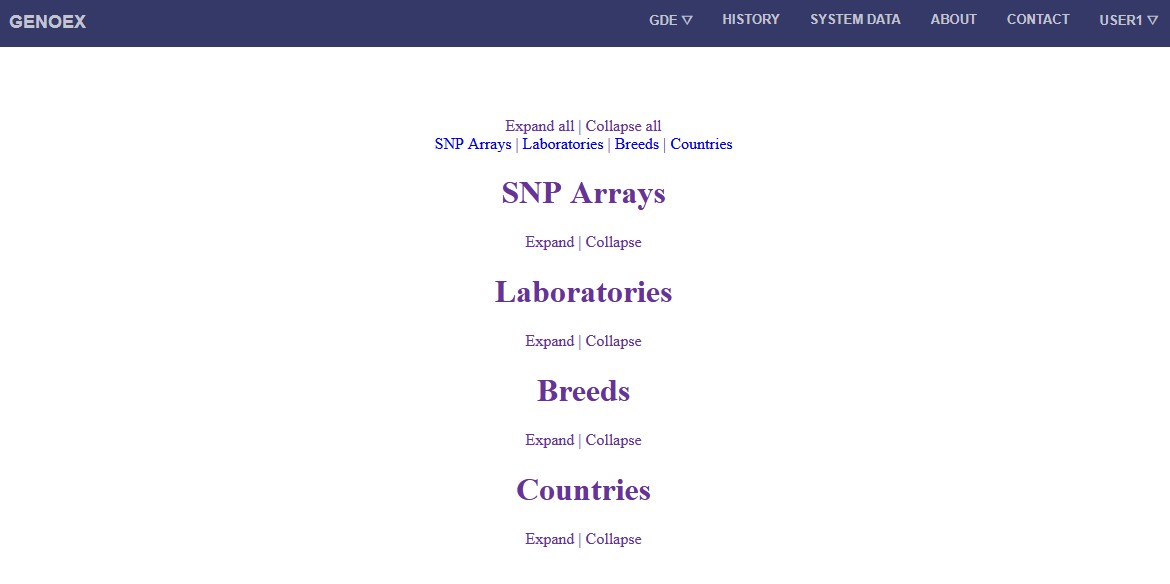
The System Data page allows to display all the available SNP orders, the allowed laboratories, breeds and countries. If the User has the need to, all the available SNP orders can be downloaded from the SYSTEM DATA page.
If you have any further questions and/or suggestions for improving this manual, please contact us at genoex@slu.se